Postman
Learn how to use Postman with Clarifai APIs
Postman is a popular API client that lets you explore, test, and interact with REST APIs without writing any code.
The Clarifai Postman collection gives you instant access to various endpoints across different resource areas — applications, inputs, models, workflows, datasets, search, compute orchestration, and more — with pre-configured authentication and ready-to-use request bodies.
You can access the Clarifai Postman collection here.
Prerequisites
- An active Clarifai account
- Postman desktop app or access to Postman Web
- A Personal Access Token (PAT) — see Step 2 below
What's in the Collection
The collection is organized into the following folders:
| Folder | Description |
|---|---|
| Applications | Create and manage apps |
| Annotations | Label inputs and manage annotation filters |
| Collectors | Auto-capture inputs from external model calls |
| Concepts | Manage labels, vocabularies, and concept graphs |
| Datasets | Create datasets, add inputs, and version snapshots |
| Inputs | Upload images, video, text, and audio |
| Models | Create, train, evaluate, predict, and export models |
| Search | Rank by visual similarity and filter by concept or region |
| Workflows | Chain models into multi-step inference pipelines |
| Pipelines | Orchestrate multi-step data processing runs |
| Artifacts | Store and version model weights and config files |
| Secrets | Manage credentials for compute infrastructure |
| Runners | Register agents for on-premises model inference |
| Compute Orchestration | Provision clusters, nodepools, and model deployments |
| Walkthroughs | End-to-end guides (RAG, visual classifier, and more) |
Getting Started
Step 1: Import the Collection
Click the button below to fork the Clarifai Postman collection directly into your workspace.

Alternatively, download the collection JSON and import it via File → Import in Postman.
Step 2: Get Your PAT
A Personal Access Token (PAT) is required to authenticate all API requests.
See the Personal Access Tokens documentation to learn how to get your PAT.
Step 3: Set Your Collection Variables
The collection uses collection-level variables — authentication and common IDs are defined once and applied automatically to every request.
To set your variables:
- Click the collection name in the Postman sidebar
- Go to the Variables tab
- Fill in the Current Value column for each variable
The key variables to set before making any requests:
| Variable | Description |
|---|---|
key | Your Personal Access Token |
user_id | Your Clarifai username |
app_id | The ID of the app you want to work with |
base_url | API base URL — pre-set to https://api.clarifai.com |
Additional variables (model_id, workflow_id, input_id, dataset_id, etc.) are used by their respective endpoint groups. Set them as you work through each section.

Step 4: Verify Authentication
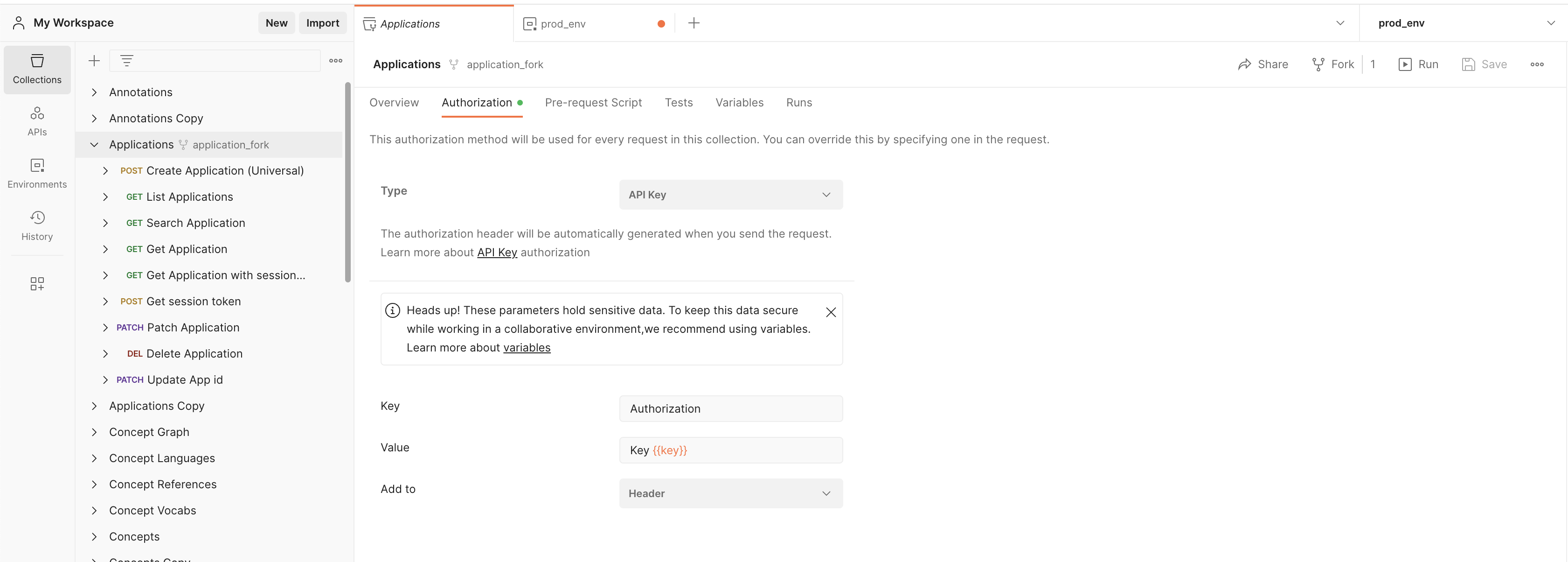
The collection is pre-configured with collection-level auth using the Authorization: Key {{key}} header. This means your PAT is applied automatically to every request — you don't need to set authentication per-request.
To verify: click the collection name → Authorization tab. You should see the auth type set to API Key with the header value Key {{key}}.
Step 5: Make Your First Request
To confirm everything is working:
- Open the Applications folder in the collection
- Select List Applications
- Click Send
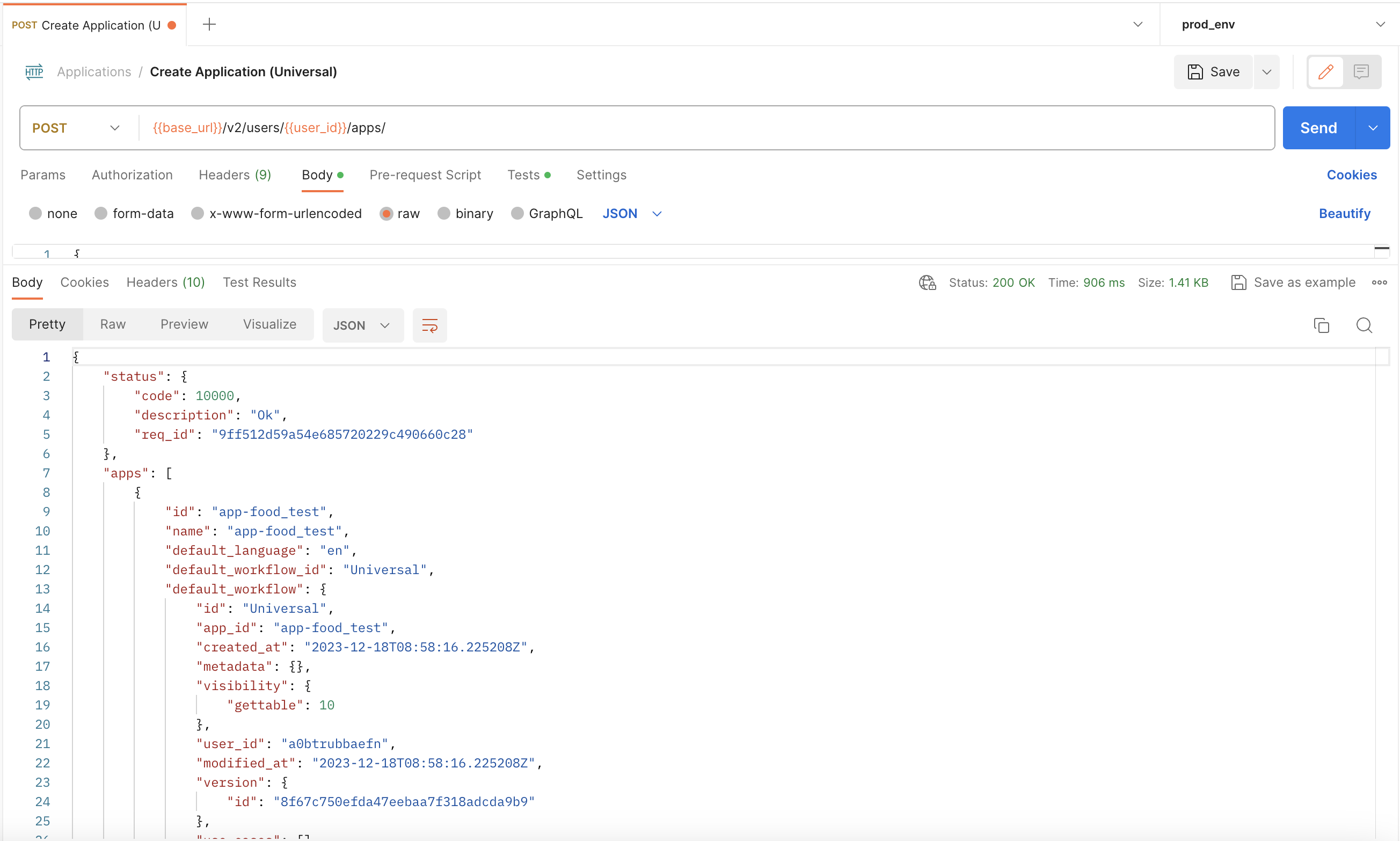
A successful response returns HTTP 200 with a JSON body containing your applications:
{
  "status": {
    "code": 10000,
    "description": "Ok"
  },
  "apps": [...]
}
Using Environments (Optional)
Instead of editing collection variables directly, you can use a Postman Environment to manage values separately. This is useful if you work with multiple Clarifai accounts or apps.
To create an environment:
- Click Environments in the left sidebar → + (New Environment)
- Add the same variable names (
key,user_id,app_id, etc.) with your values - Select the environment from the dropdown in the top-right corner of Postman
Environment values take precedence over collection variable values when an environment is active.
Generating Code Snippets
Postman can generate equivalent code in Python, Node.js, cURL, Java, and other languages for any request in the collection.
To generate a snippet:
- Open any request
- Click the
</>(Code) icon on the right panel - Select your preferred language
You can use the generated snippet to make the same request programmatically via the Clarifai REST API.